TIL: cmd + option + L to navigate to Downloads
For years—maybe decades—I have repeated these steps when facing an open/save dialog box to select a file.
If the file I want is on the Desktop, I use cmd + shift + D to navigate there. If it’s in my Downloads folder, which is common, I use this keyboard Rube Goldberg machine:
- Press
cmd + shift + Hto navigate to my home directory - Start typing “Dow” to select Downloads
- Press
cmd + downto open the selected folder.
“Ryan,” you might say gently, “There’s a button right there. You know you could just click it?”
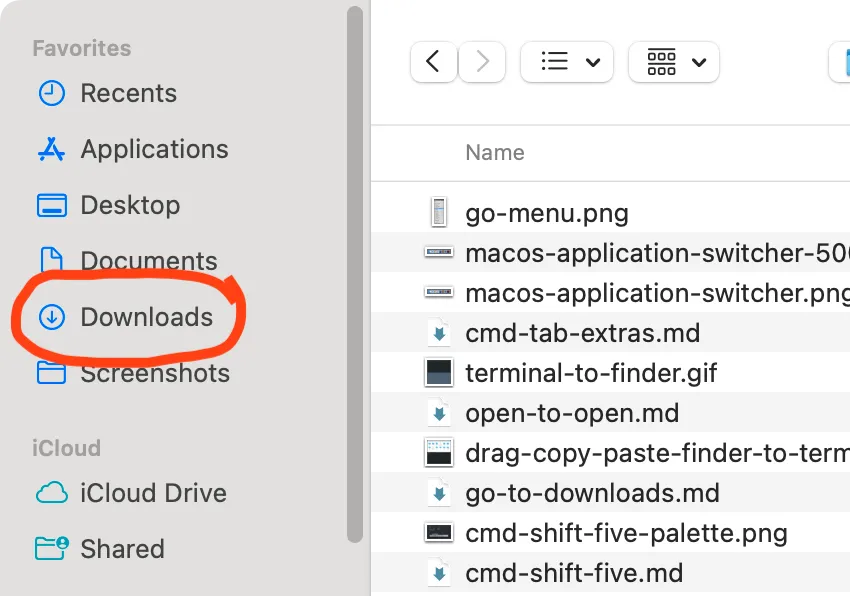
The heart wants what it wants (to keep its hands on the keyboard).
But it turns out that every shortcut listed in the Finder’s Go menu also works in Open/Save dialog boxes.
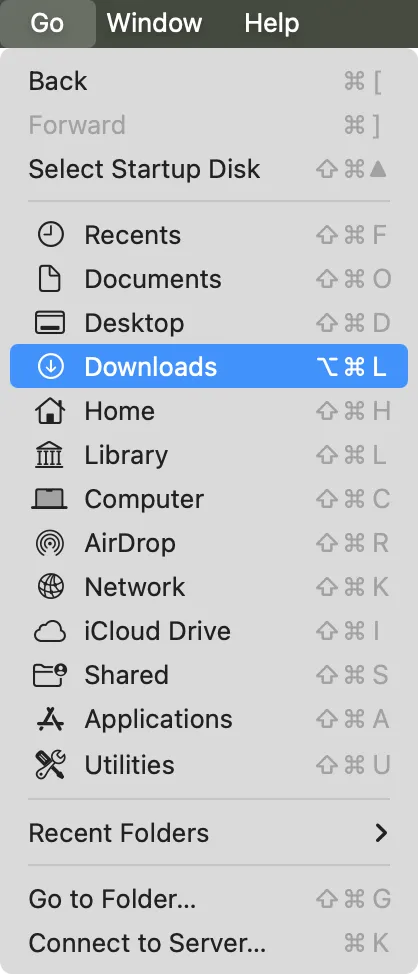
I must have missed cmd + option + L (presumably for downLoads). Now I use it all the time.