cmd + 9 to select last tab 
I keep Gmail and my calendar in the first two tabs of my browser and often use cmd + 1 or cmd + 2 to jump to them. The shortcuts continue, with cmd + 3 selecting the third tab, cmd + 4 selecting the fourth, and so on. I rarely jump to the fourth or seventh tab and never the ninth. But cmd + 9 doesn’t jump to the ninth tab, it goes to the last, which I actually want quite often. That’s the stuff I opened most recently!
cmd + option + left and cmd + option + right navigate between tabs if you’re close to the one you want.
TZ The TZ environment variable changes the selected timezone for the duration of a command (or at least commands that are aware of TZ). It’s handy to use with the date command:
$ date
Tue May 5 09:34:58 EDT 2026
$ TZ=UTC date
Tue May 5 13:34:58 UTC 2026
I actually added alias utc="TZ=UTC date" to my shell so that I can double-check the time when I’m looking at logs with UTC times.
I’m part of several WhatsApp chats for my kids: one for each class, one for each activity. Each of them is filled with dozens of parents and in many cases I want to know “whose parent are you?” Some parents actually change their name to include their children’s names. This morning in one of the chats I saw one parent’s name and underneath “Daniel’s Mom”. What’s that?!
It’s a new-ish feature launched in January 2026: member tags. You can set a description that appears alongside your name for each individual conversation. This way in the soccer chat I can mark myself as a coach, and in each classroom chat I can mark myself as the relevant child’s parent.
Scroll to the members section of the chat details, then tap “Add member tag” to edit.


More details on the support page (which is blank for “Web”; presumably the feature isn’t available there yet)
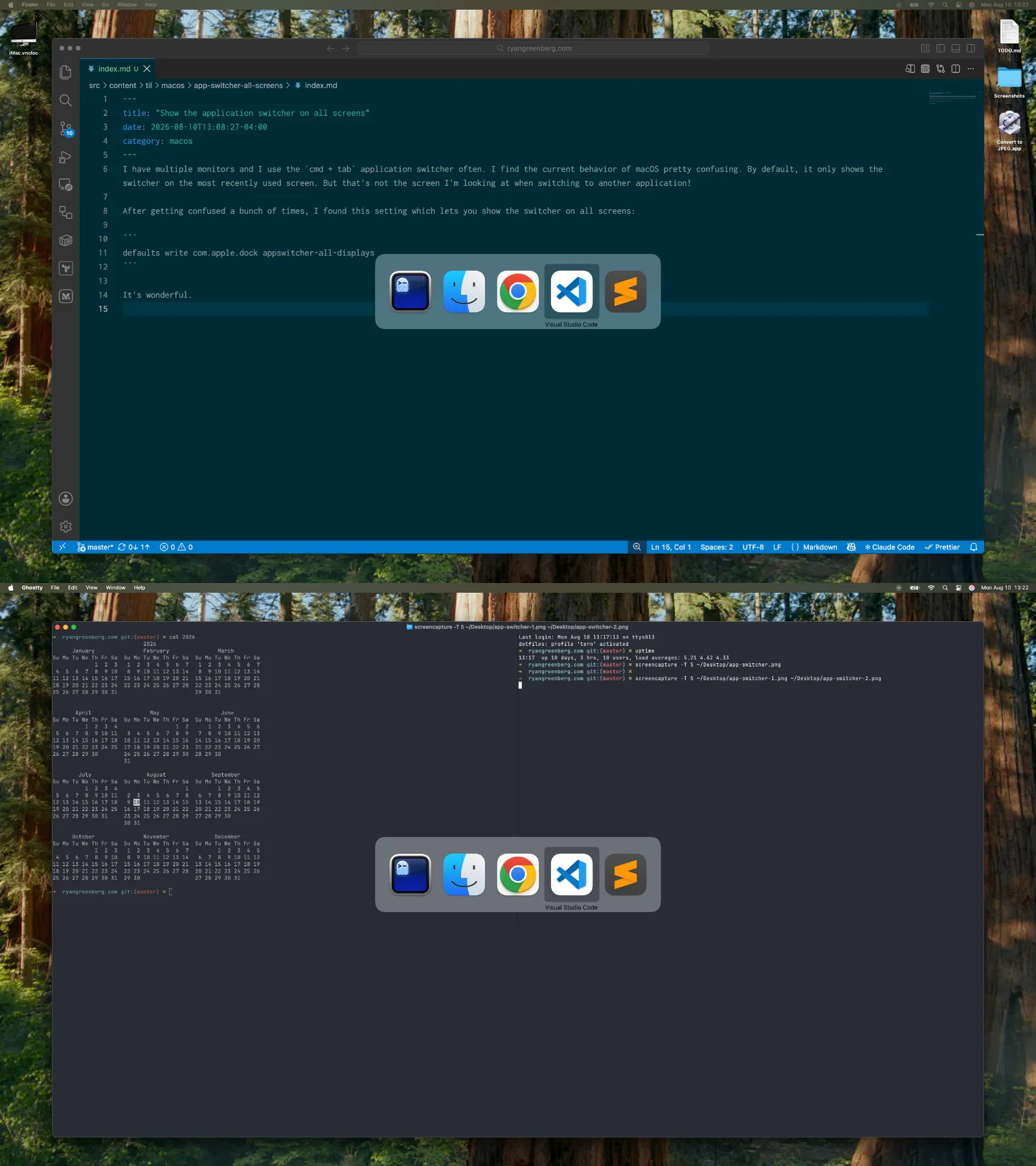
cmd + tab has a bunch of extras On macOS cmd + tab brings up the application switcher. “Yes,” you say, “I have used a computer before.”

But there are a bunch of extras!
tab, shift + tab, ~, the left/right arrow keys, or even the mouse to select the application to activate.q when an application is selected to quit the programh when an application is selected to hide itgit checkout - for last branch I move back and forth between two branches somewhat often in git (“The tests are failing on my branch—are they failing on main?” (They were not)).
I found git checkout - which is great for this. It checks out the branch or ref that you were on most recently. It reminds me of cd -, which switches to your most recent directory. Running this multiple times will bounce you back and forth between the branches.
$ git checkout -b git_commands
Switched to a new branch 'git_commands'
$ git checkout -
Switched to branch 'main'
Your branch is up to date with 'origin/main'.
$ git checkout -
Switched to branch 'git_commands'
I grew up in the era where git checkout was the command you used for five different things. Git 2.23 introduced git switch explicitly for switching branches. git switch - works the same way.
sqlite3 I love SQLite. It’s an amazing piece of software and there are so many cool things you can do with it. It comes with sqlite3, a command to work with a database interactively. Out of the box, sqlite3 formats query results poorly.
For example:
sqlite> SELECT * FROM weather LIMIT 5;
2026-01-01|EWR|35|20
2026-01-02|EWR|32|21
2026-01-03|EWR|32|20
2026-01-04|EWR|38|27
2026-01-05|EWR|37|24
The output has no headers and the pipes aren’t great separators. If you’re used to psql or mysql, this is worse.
You can make things better by running these commands (or putting them in your ~/.sqliterc):
-- Show column headers in results
.header on
-- Show results in MySQL-like columns
.mode table
sqlite> SELECT * FROM weather LIMIT 5;
+------------+---------+----------+---------+
| date | airport | day_high | day_low |
+------------+---------+----------+---------+
| 2026-01-01 | EWR | 35 | 20 |
| 2026-01-02 | EWR | 32 | 21 |
| 2026-01-03 | EWR | 32 | 20 |
| 2026-01-04 | EWR | 38 | 27 |
| 2026-01-05 | EWR | 37 | 24 |
+------------+---------+----------+---------+
These results are easier to read and similar to what you see in other database CLIs. They can be a bit of a mess with lots of columns or very long values, but that’s understandable.
SQLite 3.53 was released recently and has some big changes to query result formatting, which are exposed as improvements in the .mode command. From “Default Output Formats”:
As of version 3.52.0 (2026-03-06) the default format is:
- Show query results in a table composed from Unicode box drawing symbols. (“box”)
- Quote all output as SQL literals, except do not quote text literals when it is not necessary to disambiguate them. (“—quote relaxed”)
- Attempt to automatically squeeze the output table so that it fits within the width of the display. (“—screenwidth auto”)
- Truncate multi-line values to show only the first 5 lines. (“—linelimit 5”)
- Truncate long values to show only the first 300 characters. (“—charlimit 300”)
- Truncate column titles to 20 characters. (—titlelimit 20)
- When displaying a BLOB that is really JSONB, show the equivalent JSON text rather than the BLOB value. (“—textjsonb on”)
Now it can squeeze the entire table and columns to fit the available space and truncate long values. The new .mode box and .mode qbox use fancy unicode characters (qbox quotes values to distinguish their type; note that the strings below are quoted).
sqlite> .mode box
sqlite> SELECT * FROM weather LIMIT 5;
┌────────────┬─────────┬──────────┬─────────┐
│ date │ airport │ day_high │ day_low │
├────────────┼─────────┼──────────┼─────────┤
│ 2026-01-01 │ EWR │ 35 │ 20 │
│ 2026-01-02 │ EWR │ 32 │ 21 │
│ 2026-01-03 │ EWR │ 32 │ 20 │
│ 2026-01-04 │ EWR │ 38 │ 27 │
│ 2026-01-05 │ EWR │ 37 │ 24 │
└────────────┴─────────┴──────────┴─────────┘
sqlite> .mode qbox
sqlite> SELECT * FROM weather LIMIT 5;
┌──────────────┬─────────┬──────────┬─────────┐
│ date │ airport │ day_high │ day_low │
├──────────────┼─────────┼──────────┼─────────┤
│ '2026-01-01' │ 'EWR' │ 35 │ 20 │
│ '2026-01-02' │ 'EWR' │ 32 │ 21 │
│ '2026-01-03' │ 'EWR' │ 32 │ 20 │
│ '2026-01-04' │ 'EWR' │ 38 │ 27 │
│ '2026-01-05' │ 'EWR' │ 37 │ 24 │
└──────────────┴─────────┴──────────┴─────────┘
Although the documentation says this new mode is the default, I still see .mode list as my default so I set .mode qbox in my .sqliterc.
cal for a command-line calendar When I’m in the terminal and need quick access to a calendar I run cal.
By default cal shows you the current month with today highlighted:
$ cal
April 2026
Su Mo Tu We Th Fr Sa
1 2 3 4
5 6 7 8 9 10 11
12 13 14 15 16 17 18
19 20 21 22 23 24 25
26 27 28 29 30
cal -3 will show you a 3-month calendar, with the previous, current, and next month.
$ cal -3
March 2026 April 2026 May 2026
Su Mo Tu We Th Fr Sa Su Mo Tu We Th Fr Sa Su Mo Tu We Th Fr Sa
1 2 3 4 5 6 7 1 2 3 4 1 2
8 9 10 11 12 13 14 5 6 7 8 9 10 11 3 4 5 6 7 8 9
15 16 17 18 19 20 21 12 13 14 15 16 17 18 10 11 12 13 14 15 16
22 23 24 25 26 27 28 19 20 21 22 23 24 25 17 18 19 20 21 22 23
29 30 31 26 27 28 29 30 24 25 26 27 28 29 30
31
cal [year] shows you the whole year.
Try cal 9 1752 for a particularly unusual month.
open to open in other applications The open command on the macOS CLI lets you open things in another application. By default, it uses the application that corresponds to the file type as determined by LaunchServices. You can specify a different one with -a:
open index.html # opens in Chrome, my default application for *.html
open -a "Sublime Text" index.html
open -a "Safari" index.html
One great use for this is with directories. The Finder is the default application for them, which means you can easily open your current directory in the Finder with open . (some things are easier in a GUI!) .

If you need to go the other direction (Finder to terminal), you can drag a file into the terminal window or copy/paste it.

tee to see output and save it What if you want to watch the output of a command and save it to a file? For a long time, when faced with this need I would run the command, redirect it to a file with >, and tail that file in another tab:
bundle exec rspec ... > output # save to file
tail -f output # view it on the screen
It turns out this is the reason tee exists. tee takes standard input (stdin) and writes it both to the given file and standard output (stdout). Instead do:
bundle exec rspec | tee output
(Remember that stderr is not copied across pipes so if you want to write it to a file, you will need 2>&1 to redirect stderr to stdout: [command] 2>&1 | tee).
Bonus TIL: I didn’t really get why the command is called tee, but then I found out it’s a reference to a tool from plumbing of all places: the tee pipe fitting. A tee pipe fitting splits the flow of water or gas in a pipe (see Piping and plumbing fitting, “Tee”). By analogy, tee splits the flow of data between commands connected via pipes (|).

─────────────────────────
___ ____ ____
stdin ────▶ | |___ |___ ────▶ stdout
| |___ |___
─────────┐ ┌─────────
│ │
│ │ │
│ │ │
▼
[file]
(mind exploding GIF here)
column -t I wanted to share some tab-separated data in Slack but it was hard to read:
File Unchecked Partial Checked
chat.php 7467 910 2333
job_queue.php 4025 194 726
reminders.php 4989 274 1411
unfurl.php 3739 383 1328
users.php 5631 454 1669
I had already sent a few of these snippets and was tired of manually aligning them. I was on the verge of writing a script to format the data for me when I thought “surely there is something that does it?”
There is! It was a bit hard to figure out how to search for it, but eventually I found column. From the manual:
column -- columnate lists -t Determine the number of columns the input contains and create a table. Columns are delimited with whitespace, by default, or with the characters supplied using the -s option. Useful for pretty-printing displays.
I can’t say that I’m familiar with the verb “columnate” but it works like a charm.
$ cat data.txt | column -t
File Unchecked Partial Checked
chat.php 7467 910 2333
job_queue.php 4025 194 726
reminders.php 4989 274 1411
unfurl.php 3739 383 1328
users.php 5631 454 1669
By default column works with any whitespace-delimited separator, whether it’s tabs or spaces. Note that on the macOS version of column you need a newline at the end of your text or it will drop the last line.